See How a Website Is Really Organised
A hosting client emailed me recently with a simple request. They were folding a French sister site into their main website, under /fr/, and wanted to copy the main site’s structure. They asked if I had “a visual sitemap or a back-office export” showing the sections, the pages in each, their titles and URLs, and, if possible, what kind of page each one is: service, sector, case study, article, resource.
They’d already pulled the URLs from sitemap.xml, and that was the problem. A sitemap is a flat list. It tells you a page exists, not where it sits, what it belongs to or what it’s for. Two hundred URLs in alphabetical order don’t tell you that “Financial Services” lives under “Industry Solutions”, or that a third of the site is customer stories nobody can reach from the menu.
Most CMSs don’t produce that view either. WordPress can show you the menu, the pages and the posts, but only on three separate screens. So I built it into Website Toolkit. Every audit now produces a Site structure map: the site laid out the way visitors actually find it, with the type of every page and the sections on every page.
What you get
Open any audit and there’s a Site structure link in the results tabs. It shows the whole site as a tree, organised the way a visitor experiences it, not the way the URLs happen to be spelled.
To build that tree, the crawler reads the things a visitor would use to find their way around:
- The main menu, including dropdowns and mega-menus, so its sections and subsections become the top of the tree.
- Breadcrumbs, from structured data or from the markup, so a page that says “Home › Resources › Blog” sits under Blog.
- The URL path, so
/services/training/sits under/services/when nothing better is available.

Each page is placed by the strongest signal it has, and the tree shows which one was used: menu, breadcrumb or URL path. You can see at a glance whether a page is part of the designed structure or has just been placed by its address.
Pages that none of those signals reach go under Not in navigation. On a long list, they’re grouped by type: Case studies, Articles, Resources. Menu items the crawl didn’t reach stay in the tree marked “not crawled”, so the menu is always complete.
Every page’s sections & internal links
Expand any page and you see its headings as an outline, H1 down to H6, indented by level. These are the page’s actual sections, as a visitor (and Google) reads them. Site-wide headers, footers and sidebars are left out.
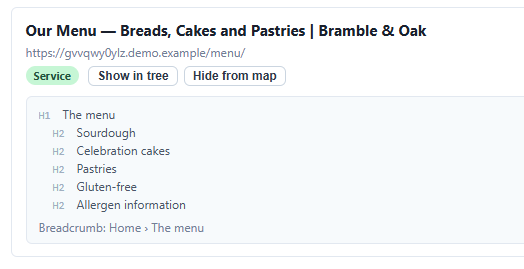
That’s the “sections on each page” half of my client’s question, and it turns out to be the part people find most useful. You can review what a page says without opening fifty browser tabs.
A page’s existing internal links are displayed on the righthand side. Planning on removing a structural page or post? Check its internal links first and remove or replace them, this saves visitors ending up on a 404 or being redirected to the site’s home page.

What type of page is it?
Every page is labelled with a type: Home, Corporate, Service, Expertise, Sector, Case study, Article, Resource, Contact, Legal or Other. The label is worked out from what’s already on the page:
- The category in the title. “Acme goes live | Customer Story” is a case study, whatever the CMS thinks.
- Structured data, such as
ArticleorServiceschema. - The URL, such as
/case-studies/,/secteurs/or/insights/. English and French keywords are both understood. - The menu section it sits under.
The title check matters more than you’d expect. WordPress marks every post as an “article”, so on a typical site the customer stories, webinars and blog posts all look the same to a machine. The title usually says what each one really is.
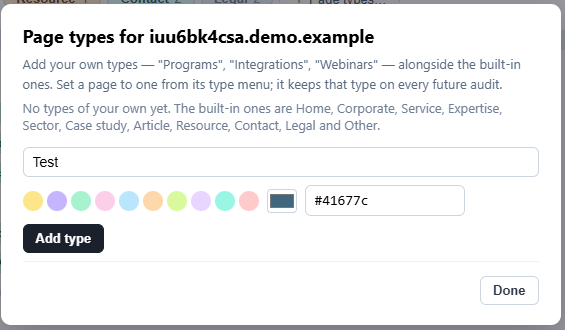
When the guess is wrong, change it with the dropdown on the page’s row. You can correct just that page, or that page and everything under its URL, and the correction carries over to every future audit.
Up to 30 custom page types can be added.
Two views, one export, one link to send
- Tree view for working through the site section by section, with search and filters by type and language.
- Map view, a diagram of the top two to four levels, for the “show me the shape of it” conversation.
- Download Excel: one row per page with Section, Subsection, Title, URL, Type, Status and the page’s H1/H2 headings. It’s a ready-made content inventory you can sort, filter and annotate.
- Copy client link: a read-only version of the map you can send to a client or colleague. They can explore it and download the spreadsheet, but can’t change anything.
My client got that link and the spreadsheet the same day. It answered every part of the question, including the “if possible” part about page types.
Using it in a site build
Most of the work in a rebuild or redesign happens before anyone opens a page builder: working out what exists, what should survive and where it should go. A site structure map shortens that phase considerably.
1. Inventory the current site. Run an audit of the existing site and export the structure. That spreadsheet is your content inventory, built from the live site rather than anyone’s memory of it. Add a column for “keep / merge / rewrite / drop” and you have the start of a content plan.
2. Plan the new structure from the real one. The tree shows how the current menu is organised and how much sits behind each section. Ten industry pages and four service pages call for a different menu from four industry pages and ten service pages. The Not in navigation groups show the content the current site never gave a home, which is usually the first thing a rebuild should fix.
3. Plan the language versions. If a site has more than one language, the map splits by language. That makes it easy to see what the French site has that the English one doesn’t, and the other way round. This was exactly my client’s use case: mirroring the main site’s structure under /fr/ starts with knowing what the structure is.
4. Check the build against the plan. Audit the staging or new site and compare its map with what you agreed. Is every planned section in the menu? Did the case studies end up under Case studies, or in Not in navigation? Do the new pages have a sensible heading outline, or did a template give every page three H1s?
5. Hand it over. Send the client the read-only link at launch. It’s the first time many clients have seen their whole site on one screen, and it makes a better handover document than a list of logins.
This fits alongside the launch and migration checklists. They tell you whether the site works and whether every old URL survived the move; the structure map tells you whether the site is organised the way you meant.
Using it for an annual content review
Sites drift. A year of “just add a page for this” leaves content scattered in places nobody planned. An annual review is how you catch it, and the structure map makes it a short job rather than an afternoon of clicking around.
Run a fresh audit, open Site structure, and work through it in this order:
- Not in navigation. These are pages that exist but that visitors can only reach by search or a stray link. Each one either deserves a place in the menu or a related-content link, or it should go. The type grouping tells you quickly whether it’s a pile of old news posts or a set of case studies you forgot to promote.
- The balance of types. The type filter shows the counts: how many case studies, articles and resources the site has. If the business sells six services but the site has four case studies, that’s an obvious piece of work for next year.
- Thin sections. A menu section with one page under it is a sign the structure has outgrown the content, or the other way round.
- Heading outlines. Skim the outlines of the most important pages. Do they still describe what the business does? Outlines show a page’s argument at a glance, and they show when that argument has gone out of date.
- Language parity. On a multilingual site, check each language’s tree for sections that exist in one language but not the other.
Keep each year’s Excel export. Put two years’ spreadsheets side by side and you can see how the site has grown and where.
Where it comes from
Nothing here needs a plugin, a CMS export or access to the site’s admin. It all comes from the public pages during the normal audit, the same crawl that checks for broken links, missing metadata and suspicious scripts. That means it works the same on WordPress, Shopify, Webflow or a hand-built site, and on a site you don’t control yet, which is often the situation at the start of a rebuild.
A few honest caveats:
- The map is only as complete as the crawl. If an audit stops at a page limit, menu items it didn’t reach are marked “not crawled” rather than dropped. For a full map, audit the whole site.
- Menus that only exist after JavaScript runs aren’t read yet. Most sites, including mega-menus, include the menu in the page itself. Where a site doesn’t, pages are placed by breadcrumbs and URL path instead.
- Page types are a well-informed guess. That’s why correcting them takes one click and the correction sticks.
Try it on a site you know well
Site structure is part of every audit from now on. The quickest way to judge it is on a site you know inside out: audit it, open the map and see whether it matches the structure in your head. If it doesn’t, either the map has something to learn or the site does. I’d like to hear about both.