Turn Client Emails Into Tasks, Without the Copy and Paste
Most of the work you do for clients after a site goes live arrives by email. “Could you change our Saturday hours?” “Here’s the poster for the new classes.” “The order form doesn’t seem to send.” Each one has to be read, worked out (which client? which site? which page?), copied into a task list, actioned, and then you need to tell the client it’s done and check they’re happy.
The copying is the part that takes unbillable time. Do you really need to spend ten minutes a day of moving text from one window to another? It’s exactly where things go missing: the follow-up email that changes the details, the request that sat under a newsletter, the “small change” you meant to write down.
The new Support inbox in Website Toolkit does that part for you. You forward your support mailbox to it, and each request turns up as a task on the right site’s feedback dashboard, written as clear instructions, with the client’s original email underneath.
Important: Support inbox is currently experimental. If you would like it enabled for your account please get in touch as HelpScout and FreeScout require paid additions that aren’t include in their free tier. Email forwarding from your own account is free and included.
Forward your mail, keep your mailbox
Every account gets its own forwarding address on the Support inbox tab of the client portal. You set your support mailbox to send a copy there, and keep using your mailbox exactly as before.
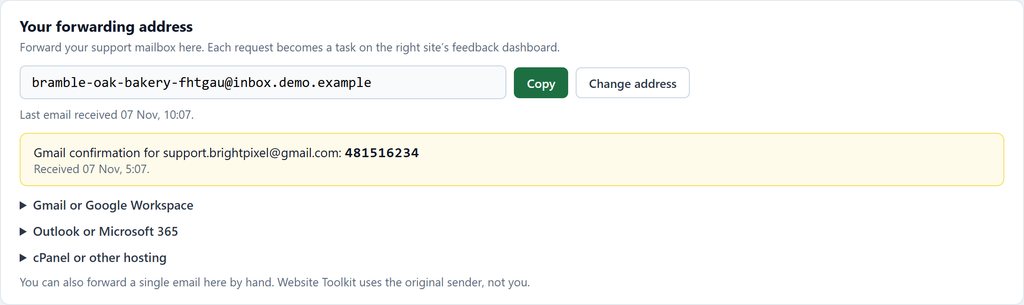
There are step-by-step instructions for Gmail and Google Workspace, Outlook and Microsoft 365, and cPanel. Gmail asks you to confirm a new forwarding address with a code it emails to that address, so Website Toolkit shows the code (and the confirmation link) right there on the page. You don’t need to go looking for it.
You don’t have to forward everything. You can also forward a single email by hand. When you do, Website Toolkit reads past your forward to the original sender, so the task is from your client, not from you. It understands the forward formats of Gmail, Outlook and Apple Mail, and Outlook’s “forward as attachment”. Anything you type above the forwarded message is kept as your note on the task.
Which site is it about?
Most freelancers look after several sites, so each email has to be matched to the right one. Website Toolkit tries, in order:
- A sender you’ve assigned before. Once you’ve told it that Tom’s emails are about the café’s site, they always go there.
- The sender’s email domain. Mail from
maggie@brambleandoak.co.ukis aboutbrambleandoak.co.uk. Gmail, Outlook.com and other free mail addresses don’t count, since they say nothing about which site someone owns. - A known contact. The sender is the client contact on one of your projects, or has asked for changes before.
- The site named in the email. A link or a mention of the domain in the subject or body.
- Your only site. If you only have one, that’s the one.
If none of those settles it, AI reads the email and suggests a site, but only one of yours, and only when it’s confident. Otherwise the email waits for you under Needs attention.

Pick the site and press Assign. The email becomes a task straight away, and Tom’s later emails go to the same site without asking.
From email to a task you can act on
Each request is read by Claude, which decides three things: whether it’s a request for website work at all, which category it belongs in (Content, Design, Functionality, Bug, and so on), and what exactly is being asked. It rewrites the request as clear instructions, keeping every detail the client gave: the dates, the prices, the exact wording. It also picks out the page the change is on.
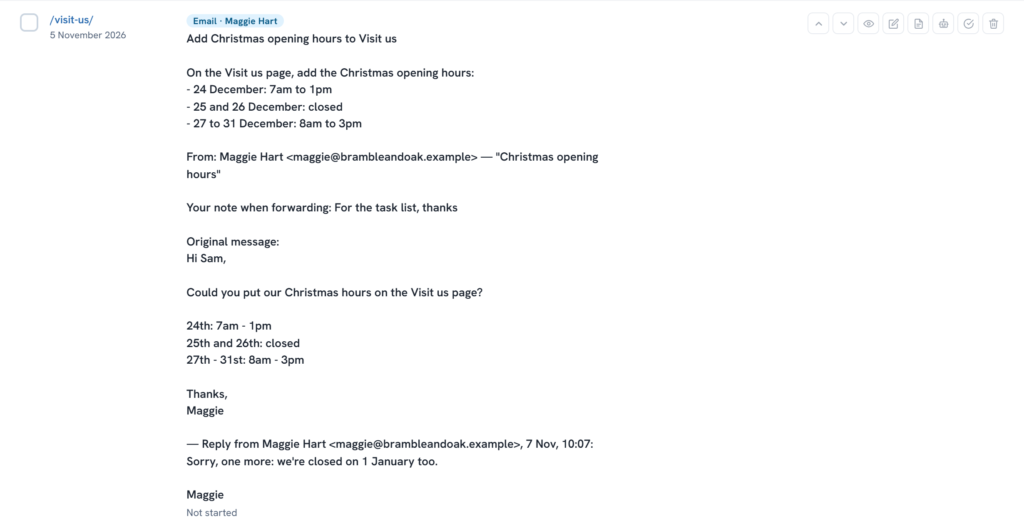
The original email is always kept under the instructions, so nothing gets lost in the rewrite. Images attached to the email come with it:
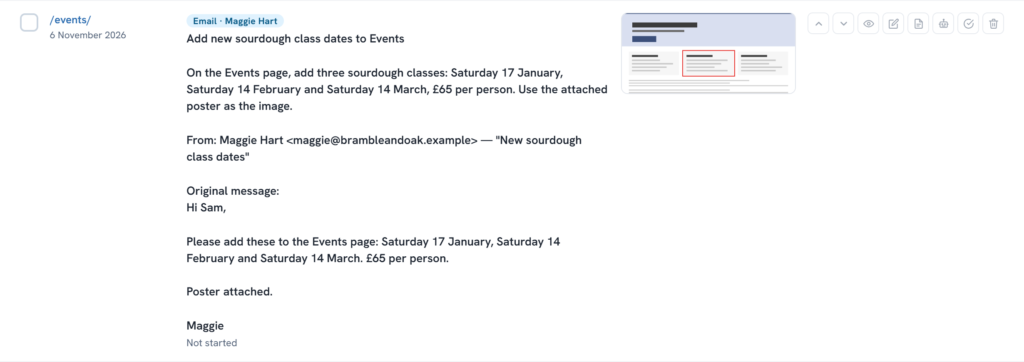
Follow-ups join the task. When Maggie writes again, “sorry, one more: we’re closed on 1 January too”, her reply is added to the same task instead of starting a new one. If the task was already marked complete, it reopens. That works even when the first email reached you as a forward. Website Toolkit matches her reply by who sent it and the subject line, since her reply doesn’t mention your forward at all.
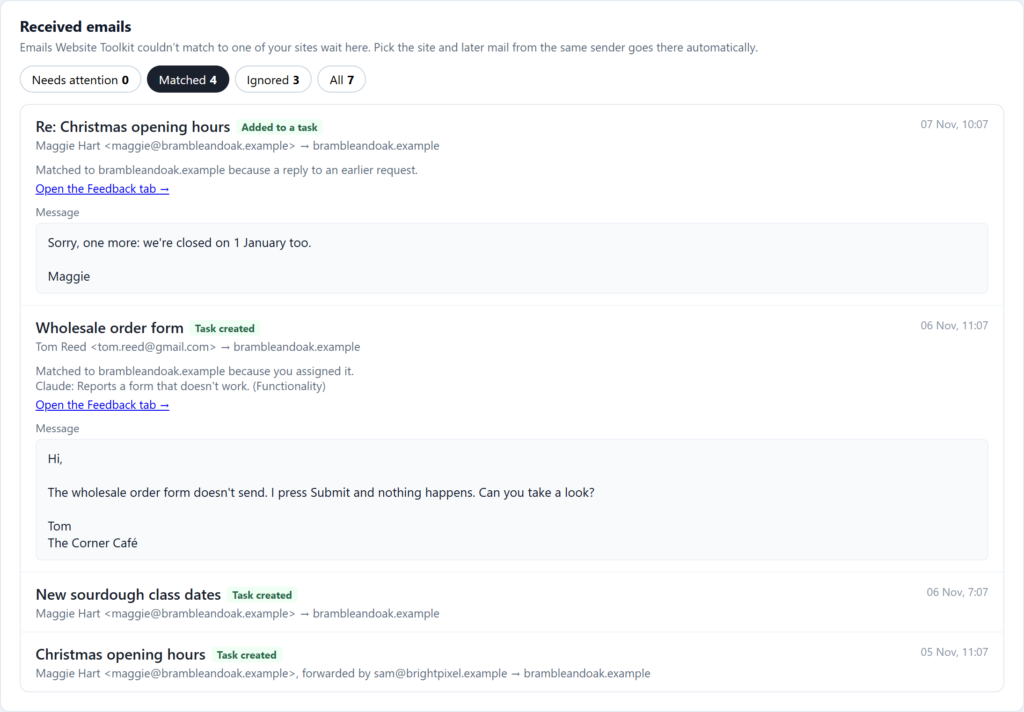
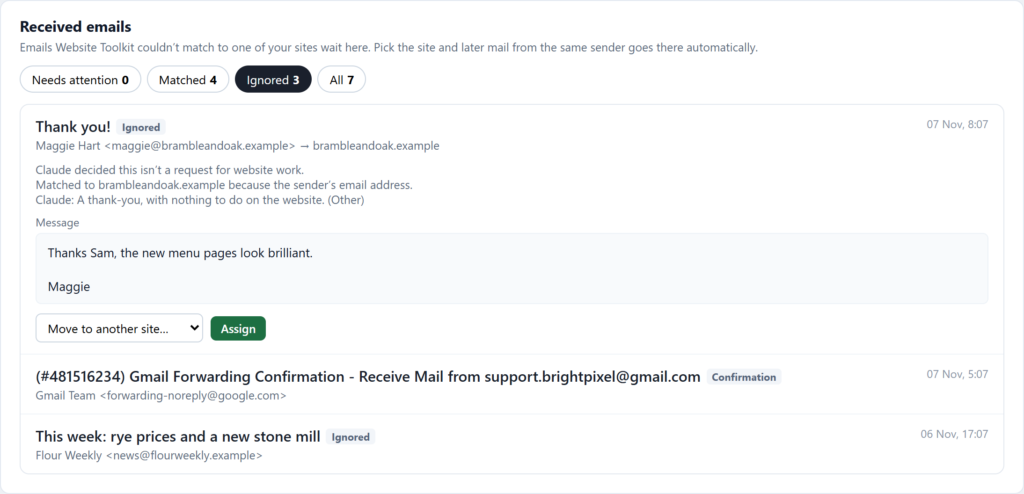
Things that aren’t requests stay out of the way. Out-of-office replies, bounces and newsletters are recognised from their headers and never reach the AI. A thank-you note, or an email about an invoice, is read and set aside as “not a request”. Everything set aside is under Ignored, with the reason, and you can still turn any of it into a task.
Using a FreeScout / HelpScout instead
If you already use a help desk, you don’t need to forward anything. Connect FreeScout (API and webhook module required), or Help Scout (requires paid Help Scout plan and an App registration). New tickets and customer replies come in as they arrive, and Website Toolkit checks for missed ones every 15 minutes.
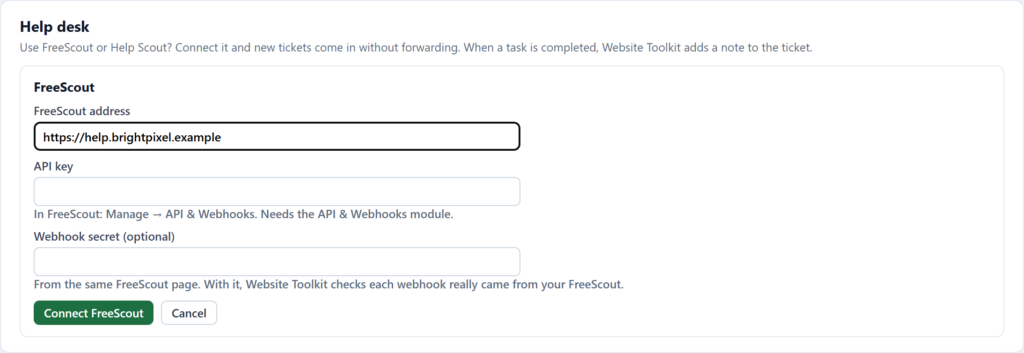
A help desk gives two extras. You can say which site each mailbox is for, which is the most reliable match there is if you run a mailbox per client. And the link works both ways: each task links back to its ticket, and when the task is completed, a note goes on the ticket (“the change is complete”), with the option to close the ticket too.
Getting the client’s sign-off
Once the change is made, you don’t want to write another email asking the client to check it. On the feedback dashboard, each task has a Send for approval button. It adds the task to a review package as an “Approve / request changes” question on the right page, and moves the task to In progress.
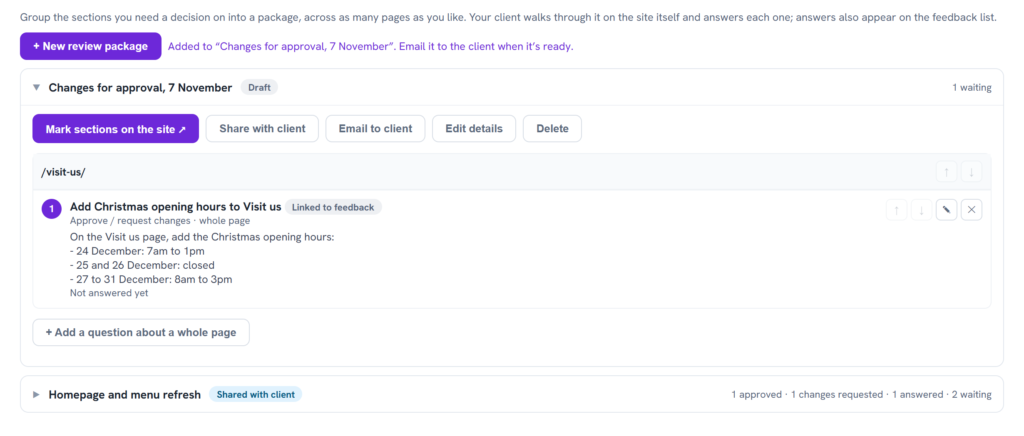
Email to client sends the package link to the person who asked for the change, branded as your agency, with replies coming to you. The client looks at each change on their own site and answers. When they approve, the task is completed. When they ask for changes, it reopens with their comment added, so the next round of work is already written down.
That’s the whole loop: the client emails, a task appears, you do the work, the client approves, and the task closes. You haven’t copied anything anywhere.
A few details
- The email is untrusted. Only the text a reader would see is kept, never the HTML, so hidden text is dropped. The AI is told the email is data to sort, not instructions to follow. Anything in an email that tries to tell it what to do is ignored. Emails whose sender couldn’t be verified (failed SPF, DKIM or DMARC) are marked, but not blocked, since forwarding often breaks those checks.
- What the AI sees. Claude gets the sender, the subject and the start of the email text, plus your list of sites and categories. Attachments aren’t sent to it. Each account has a daily limit on how many emails are read this way. Past that, or if the AI is unavailable, a matched email still becomes a task, using its own subject and text.
- Changing the address. Change address stops the old address working straight away. Use it if the address ever ends up somewhere it shouldn’t.
- Large emails. Emails over 15 MB are listed so you know they arrived, but not read.
- When a site has no task list yet. The email waits with a Start a task list button that creates the site’s feedback dashboard and the task in one go.
Try it
The demo now includes a few days of the sample bakery’s email, already sorted: two requests turned into tasks, a follow-up added to one of them, a thank-you and a newsletter set aside, and Tom’s email waiting for you to assign. The guided tour has four new steps covering it.

For your own sites, open the Support inbox tab in your client portal, copy your forwarding address, and set your support mailbox to forward to it.